
AI Candy CanePicture
The red-and-white Christmas photo trend, from your own selfie.
Aspect ratio
Free: 5 credits Auto-deleted in 24h
Use only your own photos or ones you have permission to use. · Terms
To do the AI candy cane picture trend, upload a clear selfie or a photo with friends, keep the Candy Cane Trend scene selected and press Create. The AI puts you in a glossy red-and-white studio set with giant candy canes and peppermint swirls, while keeping your face and smile exactly as they are.
How to do the AI candy cane trend
- 1
Upload a selfie
Face the camera in good light. Solo selfies, best friends and couples all work.
- 2
Keep "Candy Cane Trend" selected
Pick 9:16 for Stories and TikTok, 4:5 for an Instagram post, or 1:1 for a profile picture.
- 3
Post it
Download your candy cane picture, or animate it into a short sparkle video for your Story.
Real results
Candy cane pictures made from everyday selfies
Street selfies in, candy cane photoshoot out. Same faces, same smiles, a lot more peppermint.
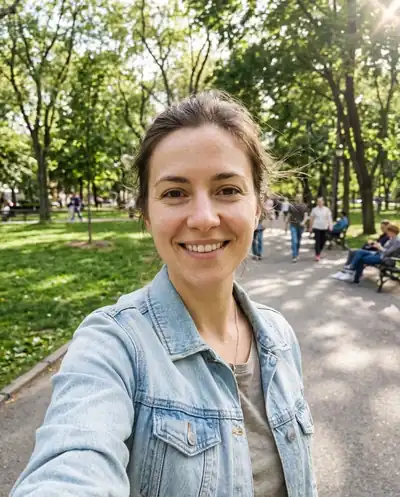 Before
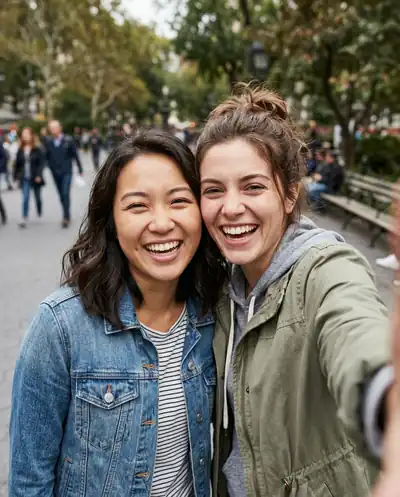 Before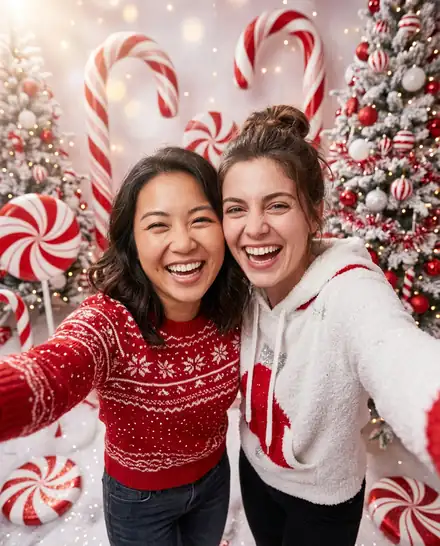
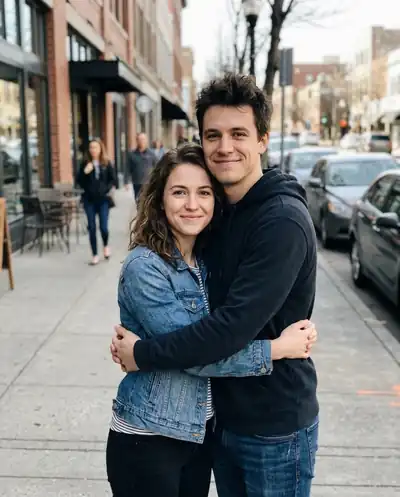 Before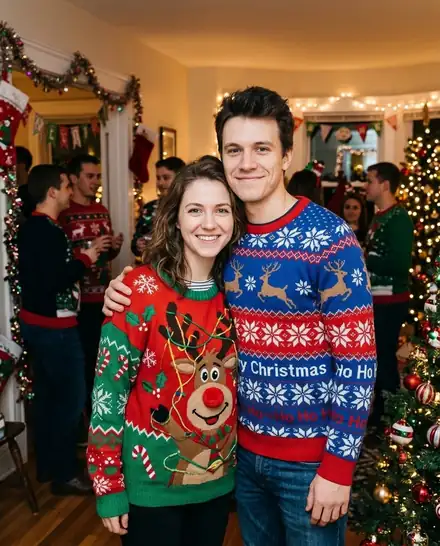
 Before
 Before
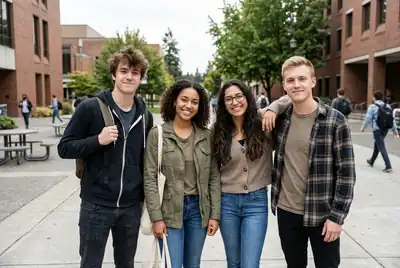 Before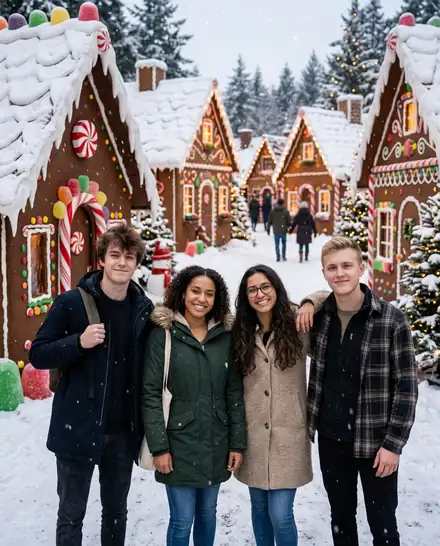
All people and pets in these examples are AI-generated; no real customers' photos are shown.
Why do the trend here
Still looks like you
Your face, hair and smile stay the same. The trend look comes from the set, outfit and lighting.
The full candy cane set
Giant striped canes, peppermint swirls, red-and-white outfits with a touch of glitter and glossy light.
Sized for your feed
9:16 for Stories and TikTok, 4:5 for Instagram, 1:1 for a profile picture.
Solo or with friends
Bring your best friend or partner into the same candy cane shoot from one photo.
No prompt needed
The trend look is built into the scene. Want to tweak it? Add a detail like "red sequin dress".
Private, auto-deleted
Uploads and results are deleted 24 hours after you make them. We never use your family photos to train AI.
What the AI candy cane trend is
The candy cane picture is this season's Christmas photo trend: a glossy studio portrait in a dreamy red-and-white set, with giant striped candy canes, peppermint swirls, red-and-white outfits and a little glitter. It looks like a professional holiday photoshoot, but it starts from a normal selfie.
Most people make it by pasting a long prompt into a chatbot and hoping the face survives. Here the look is built into the Candy Cane Trend scene, and the AI is told to keep your face, hair, skin tone and smile exactly as they are.
How to get a great candy cane picture
The trend look is bright and close-up, so the selfie matters:
- Face the camera in soft daylight; avoid strong shadows across your face.
- Hold the phone at eye level or a little above.
- Shoulders-up framing works best; very wide shots make the face small.
- Friends and couples work too: squeeze into the frame together.
- Want a twist? Add a detail like "red sequin dress" or "holding a giant lollipop" in Extra details.
Candy cane photoshoot ideas to try
The scene sets the red-and-white studio. Type one of these into Extra details to make the picture yours:
- "Red satin dress and a peppermint headband": the classic glam version of the trend.
- "Oversized white knit sweater, holding a mug of hot cocoa": cozier, softer, great for a profile picture.
- "Sitting on a giant candy cane swing": playful, works best in 9:16.
- "Wrapped in a red-and-white striped scarf, light snow falling": a winter twist on the same set.
- "Matching striped pajamas" for couples and best friends.
- "My dog wearing a tiny candy cane bandana": pets can join the photoshoot too.
- "Black-and-white film look with only the red kept in color": an editorial version that stands out in a feed.
- "Holding a hand-lettered sign that says Merry Christmas": short words work best; long sentences can come out misspelled.
A chatbot prompt or a ready-made scene?
You can make a candy cane photo in a general chatbot, and many people do. The catch is the face: a long creative prompt pulls the picture toward the "ideal" studio portrait, and the person in it often looks like a cousin rather than you. Group photos are harder still, because every face has to survive.
This page takes the other route. The candy cane look is a fixed scene that was tested on real-looking selfies, couples and groups before launch, and the instructions that keep faces, hair and skin tone the same are sent with every picture. You only choose the shape and, if you want, one extra detail. If a picture fails, the credits come back automatically.
Prefer to write your own prompt anyway? Our guide to the AI Christmas photo trend lists the scene prompts we use, and you can paste a short detail from any of them into Extra details here.
Pick the right shape for where you post
Choose 9:16 for Instagram Stories, TikTok and Reels, 4:5 for a feed post, and 1:1 for a profile picture. The shape is set before you create, so the set is composed for that frame instead of being cropped later.
Want it to move? Tap "Animate it" after the picture is ready and choose Magic Sparkle for golden sparkles and a slow push-in. Videos need an account and start at 20 credits for 5 seconds; see the AI Santa video page for all motions.
More Christmas looks from the same selfie
Candy cane is one of thirteen scenes. Under your result, tap another scene to remake the same photo: Santa Hat & Snowflakes for a cozy profile picture, Ugly Sweater Party for something silly, or Vintage 1950s Christmas for a retro film look. All of them are in the AI Christmas photo generator, and any result can become a greeting card with the Christmas card maker.
Your first picture is free: every device gets 5 free credits, enough for one photo, with no sign-up. More pictures cost 5 credits each. Uploads and results are deleted after 24 hours.
Where the candy cane look works
Instagram Stories
A 9:16 candy cane portrait for your December Story.
TikTok trend posts
Post your before and after side by side.
Profile pictures
A 1:1 red-and-white portrait for the holidays.
Bestie photos
One photo of you and your best friend, one candy cane photoshoot.
AI candy cane picture FAQ
Upload a clear selfie or a photo with friends, keep the Candy Cane Trend scene selected (or pick another Christmas scene), choose 9:16, 4:5 or 1:1, and press Create Christmas Photo. The picture is usually ready in under a minute.
More Christmas tools
Join the candy cane trend
One selfie, one tap, and your Christmas post is done.